
Flip Video
Front cameras often save selfie videos mirrored, and phones sometimes record clips sideways. This tool flips or rotates a video right in your browser: choose horizontal mirror, vertical flip or a 90° rotation, check the preview, then record a corrected copy to save. Your video never leaves your device — and mirror mode on its own is handy for learning dance moves or exercises.
- Free to use
- No sign-up
- Runs in your browser
Flip or rotate a video
Video Planning Templates
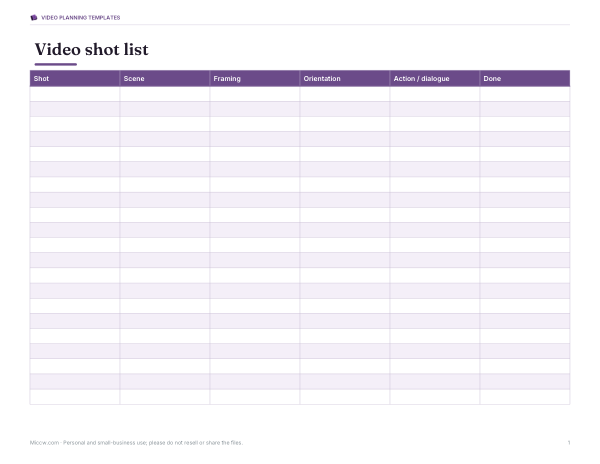
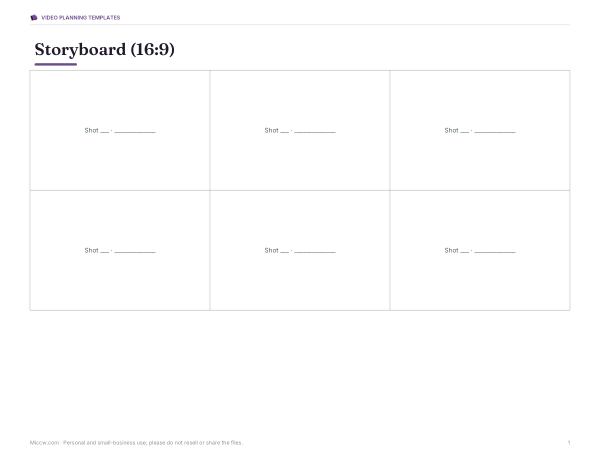
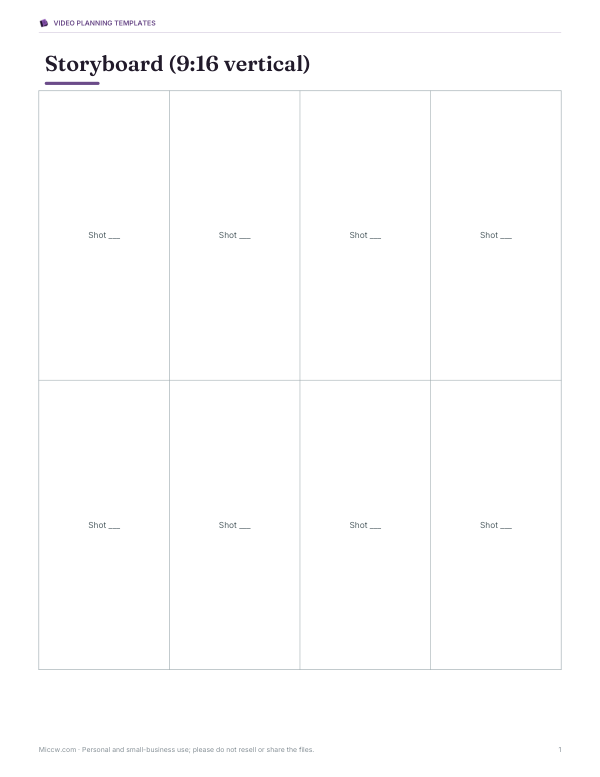
Printable video shot list, storyboard sheets in 16:9 and 9:16, a filming checklist and an Excel content calendar for short-form video.
- Shot list (PDF/DOCX/XLSX)
- Storyboard 16:9 (PDF)
- Storyboard 9:16 (PDF)
- Filming checklist (PDF/DOCX)
- Content calendar (XLSX)
Formats: PDF, DOCX, XLSX. Instant download after payment (link valid 72 hours, up to 5 downloads). AI-assisted: the templates were drafted with AI help and reviewed and laid out before publishing.
$5.00 USD, one-time 5 files · about $1.00 each
- Instant download
- 7-day refund
- Secure checkout by Stripe
7-day money-back guarantee. Full refund within 7 days of purchase, even after you download.
Free sample: Content Calendar (PDF, 73 KB)
Full refund within 7 days — see the refund policy and license.
Free printables
Single sheets you can print right now, no sign-up. The full pack adds every sheet in one download plus the editable files.
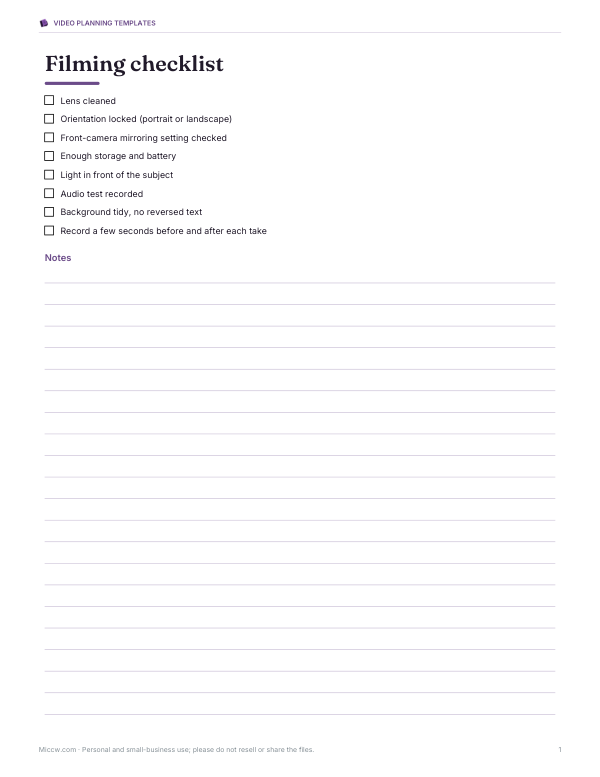 Printable Filming Checklist
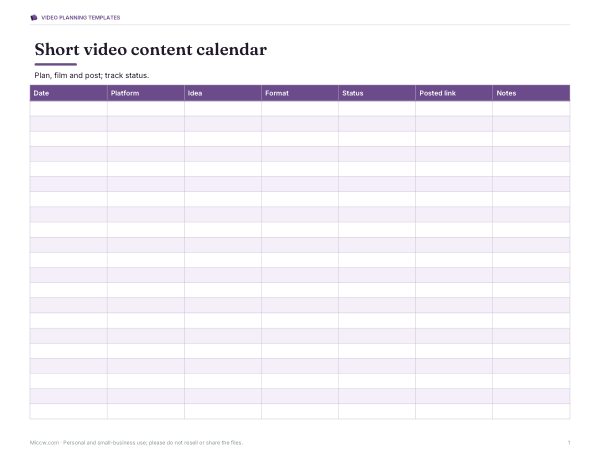 Printable Video Content Calendar
Why videos end up mirrored or sideways
Phone front cameras show you a mirror image while you record, because that feels natural — like looking in a mirror. Some phones and apps save the video that way too, so text on a T-shirt or a sign appears backwards. Sideways videos usually happen when the phone was rotated just as recording started, or when an app ignores the orientation information stored in the file. Flipping or rotating the pixels fixes both problems for good.
What each option does
| Option | Effect | Use it when |
|---|---|---|
| Mirror (horizontal flip) | Swaps left and right | Text is backwards; learning dance or exercise moves from a teacher facing you |
| Vertical flip | Turns the picture upside down | A camera was mounted upside down |
| Rotate 90° clockwise / anticlockwise | Turns portrait into landscape or back | A clip was recorded sideways |
| Rotate 180° | Turns the picture the other way up (same as flipping both ways) | The phone was held upside down |
How to flip a video
- Choose a video file from your device.
- Pick mirror, vertical flip and/or rotation; the preview updates immediately.
- Press Play to check the result, at slower speed if you like.
- Click “Save flipped copy”. The tool plays the video once while recording the corrected picture, so a 1-minute clip takes about a minute.
- When it finishes, the new file downloads automatically.
Mirror mode for dance, sport and fitness practice
When you follow an instructor who faces you, their right arm is on your left. Mirroring the video turns it into a reflection, so you can move the same side as the screen — exactly like practising in a studio mirror. Slow it to half speed to learn a difficult section, and you don’t need to save a copy at all: just use the preview.
Output format and quality
- The saved copy is WebM in most browsers, or MP4 where the browser supports recording it.
- WebM plays in Chrome, Edge, Firefox and VLC, and most editing and upload sites accept it.
- Because the video is re-encoded, file size and quality can differ from the original; very high-resolution or long videos may be large.
- Audio is included where your browser allows it to be captured.
- For professional work, a desktop video editor gives more control over bitrate and format.
Flipping versus rotating
Flipping and rotating are different operations. A flip creates a mirror image — left becomes right — and nothing you do with rotation alone can undo a mirror. A rotation turns the picture without mirroring it, so text stays readable. Rotating 180° looks like flipping both horizontally and vertically at once, which is why the tool lets you combine options: if a clip was filmed upside down with a mirrored front camera, a 180° rotation plus a mirror corrects both.
Which videos work
The tool can open any video your browser can play, which usually includes MP4 (H.264), WebM and, in many browsers, MOV files recorded on phones. Some formats — such as HEVC/H.265 MOV files from recent iPhones — play only in certain browsers; if a file won’t load, try another browser or export it from your phone as “most compatible”. Very long 4K videos may be slow to record on older computers; shorter clips work best.
Sharing the corrected video
- Messaging apps and social platforms generally accept WebM or MP4 uploads; if one rejects WebM, convert it with a free desktop converter.
- Rename the file clearly, for example “dance-routine-mirrored.webm”.
- Keep the original too, in case you want a different correction later.
Privacy
Your video is opened and processed entirely inside your browser. Nothing is uploaded to a server, and the file never leaves your device unless you choose to share the saved copy yourself.
Worked example
A 30-second portrait selfie video of 1080 × 1920 pixels has backwards writing on a sign behind you. Choose Mirror = Yes, leave rotation at 0°, and save: the result is still 1080 × 1920 but reads correctly. If instead a landscape clip of 1920 × 1080 was recorded sideways, choose Rotate 90° clockwise; the output becomes 1080 × 1920, the right way up.
Screen recordings and webcams
Webcam recordings from video calls and some screen-recording apps are often mirrored too, because the preview you see is mirrored for comfort. The same mirror option fixes them. If you record lessons or tutorials with a webcam, check a few seconds of footage with text in view before recording the whole session.
Tips
- Trim long videos in another app first to save time — recording happens in real time.
- Keep the tab visible while saving; some browsers slow down hidden tabs.
- If the saved copy stutters, close other heavy tabs and try again.
- To stop some phone cameras mirroring selfies, look for a “mirror front camera” setting.
AI-assisted content
This page was drafted with AI assistance and reviewed before publishing.
Frequently asked questions
Can I flip a video without uploading it?
Yes, this tool works entirely in your browser.
What format is the flipped video?
WebM in most browsers, MP4 where supported.
Why is my selfie video mirrored?
Front cameras often save a mirror image; use Mirror to reverse it.
Can I rotate a sideways video?
Yes, choose 90° clockwise or anticlockwise.
Why does saving take as long as the video?
The browser records the corrected picture while the video plays once.
Does it keep the sound?
Yes, where your browser allows audio to be captured.
Can I mirror a video just to practise a dance?
Yes — use the mirrored preview at half speed without saving a copy.